
Print2Fax is a Windows desktop application that lets you send a fax from any program with a single click, using the ICTFax server to handle delivery. It works like a virtual printer driver, so faxing a document is as easy as printing it. You skip the physical fax machine and the dedicated phone line, and you send straight from the apps you already use.
Print2Fax supports a wide range of document formats, sends documents securely, and keeps detailed Call Detail Records (CDR) so you can track every fax. This guide covers what it does, how it works with ICTFax and ICTCore, and how to set it up.
What Is Print2Fax?
Print2Fax is a desktop application for Windows that lets you fax from any program. Acting as a virtual driver, it sends documents to a fax number without a traditional fax machine or phone line. It fits into your existing digital workflow, so sending a fax feels the same as printing a page.
Key Features of Print2Fax
1. Easy Integration
Print2Fax works with everyday Windows applications. Print from Microsoft Word, Excel, or any app that supports printing, choose the Print2Fax option in the print dialog, and send your document to the fax number you want.
2. Wide Compatibility
The application supports formats like PDF, DOCX, and XLSX, so you can fax almost any document. That flexibility makes it useful across many professional sectors.
3. User-Friendly Interface
The interface is simple to navigate, even if you’re not especially technical. It guides you step by step so you can enter fax numbers and add cover sheets without fuss.
4. Secure and Reliable Faxing
In healthcare, law, and finance, sending sensitive documents securely is essential. Print2Fax sends documents securely and helps you stay compliant with privacy rules, and it confirms once a fax has been sent.
5. Cost-Effective
By removing the need for physical fax machines, dedicated phone lines, and their upkeep, Print2Fax cuts costs. You save on paper and toner and reduce overall operating expenses.
How the ICTFax Print2Fax Application Works
ICT Innovations built Print2Fax for Windows users, and it integrates with ICTCore and the ICTFax server. When you send a fax from Print2Fax, ICTCore receives it, processes it, and forwards it to ICTFax or FreeSWITCH for delivery to the destination.
1. Install Print2Fax
Install the Print2Fax driver, which ships as an .exe file, then finish the setup. Note: run Print2Fax as an administrator so it works correctly; a standard user account may not have the access it needs.
2. Open the Application
After installation, run the application as an administrator. When you open it, a login screen appears where you enter the credentials you created in the ICTFax web panel.
3. Log In as User or Admin
Print2Fax connects to ICTCore and the ICTFax server. Enter the ICTFax server’s IP address or configured domain, then your ICTFax username and password. Once you log in, you’ll see your account information.
4. Send a Fax
In the send-fax section, enter the details you’d use on the ICTFax web server: fax title, document, contact details, retry options, and caller ID. When you submit, the document goes to ICTCore and ICTFax, which manage the transmission and forward it to FreeSWITCH for delivery.
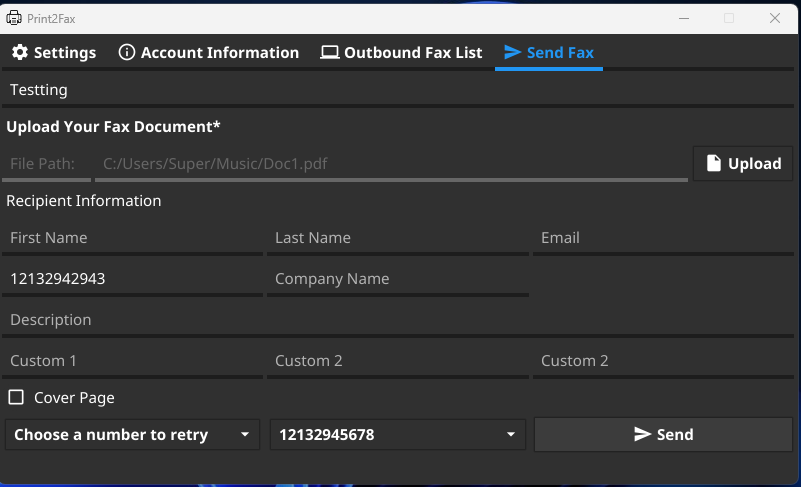
The standout feature is one-click sending. Right-click any document, choose the “Print 2 Fax” option, and the application opens straight to the send-fax screen with your document already uploaded, so you don’t have to attach it by hand.
Benefits of the Print2Fax Application
1. Works Directly With the ICTFax Server
Print2Fax is built to work with the ICTFax server and ICTCore, so every fax you send from the desktop is processed and delivered without manual steps, which saves time and reduces errors.
2. Simple Installation
Setup is straightforward for Windows users. The .exe driver installs quickly, and running it as an administrator keeps it working smoothly.
3. Secure Login
You log in with credentials from the ICTFax web panel, which protects sensitive information and supports different access levels by user role.
4. Efficient Sending
Enter the fax title, document, contact details, retry options, and caller ID from your desktop, and Print2Fax does the rest, sending the fax through ICTCore and ICTFax to FreeSWITCH.
5. Retry Options
If a fax fails, the system retries automatically, which lowers the chance of a missed transmission and raises your delivery success rate.
6. Convenient Desktop App
Because it’s a desktop application, you can send faxes without opening a browser. That’s handy if you fax often, since it keeps your workflow in one place.
7. CDR Report Monitoring
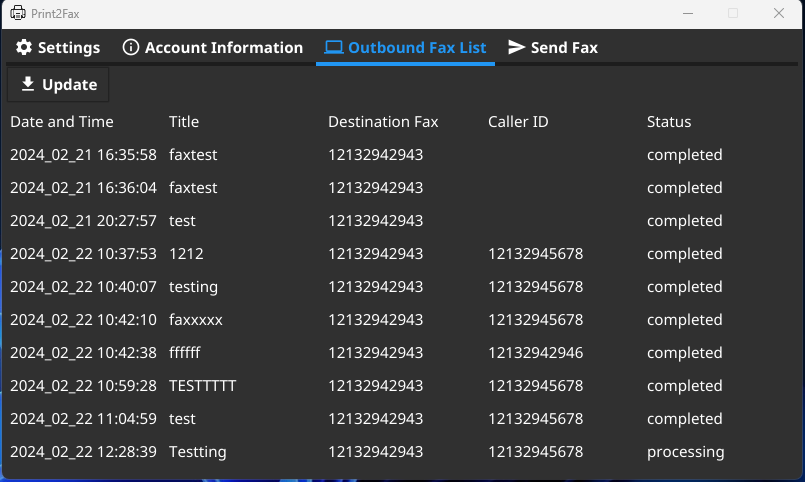
Print2Fax lets you track the status of sent faxes through detailed Call Detail Records (CDR). After sending, you can see whether a fax went through, whether there were errors, and whether retries were attempted. You can view the status of faxes sent through Print2Fax, and you can also see CDR reports for your faxes in the ICTFax web panel.
8. Saves Time
Print2Fax cuts the time it takes to send a fax by keeping the whole process on your desktop. Without a fax machine or a separate web interface, you upload a document, fill in the details, and send in a few clicks, which suits businesses that fax often.
Frequently Asked Questions
What is Print2Fax?
Print2Fax is a Windows desktop application that sends faxes from any program through the ICTFax server. It works like a virtual printer driver, so you can fax a document the same way you print it.
Do I need a fax machine or phone line to use Print2Fax?
No. Print2Fax sends documents through ICTCore and the ICTFax server over IP, so you don’t need a physical fax machine or a dedicated phone line.
What file formats can I send?
Print2Fax supports common formats like PDF, DOCX, and XLSX, so you can fax most everyday documents.
Can I send a fax with one click?
Yes. Right-click a document, choose the “Print 2 Fax” option, and the app opens to the send-fax screen with the document already uploaded.
How do I track whether a fax was delivered?
Print2Fax keeps Call Detail Records (CDR) that show delivery status, errors, and retry attempts. You can review them in the app or in the ICTFax web panel.
ICT Innovations builds open-source communication software, including ICTFax.